
HiStream Watchlist Explained: Save Movies to Watch Later
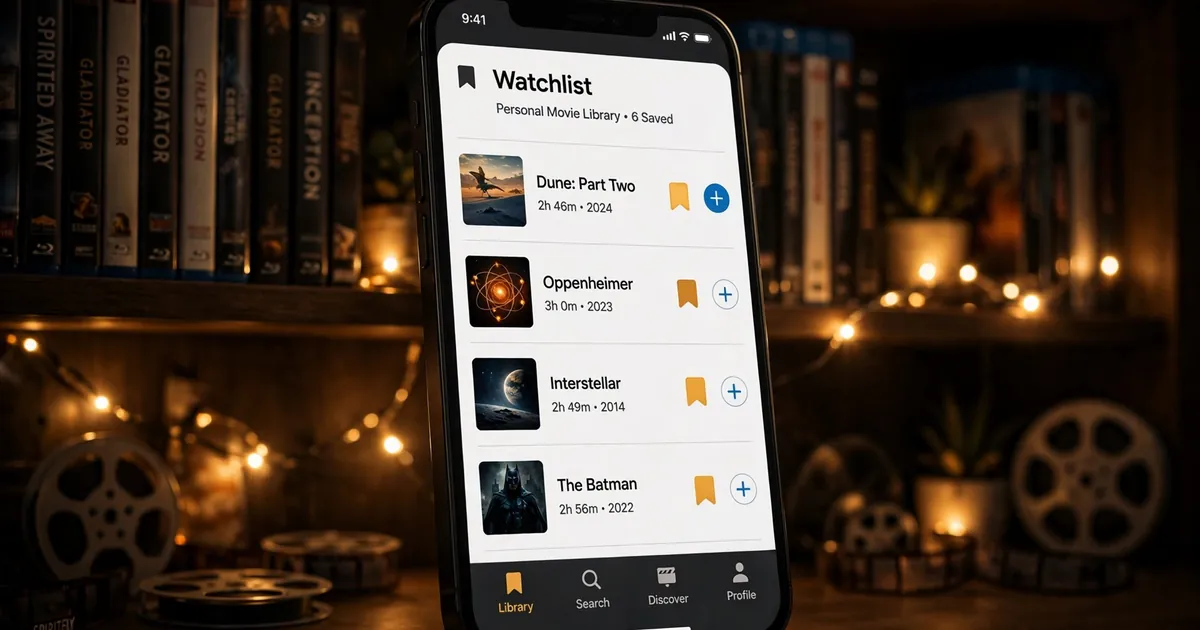
HiStream has no formal watchlist feature, no bookmark button, no saved list. You cannot tap a plus icon on a movie poster and find it later in a "My List" shelf, because that shelf does not exist. With no account system, there is nowhere for a cloud watchlist to live. But "no watchlist button" is not the same as "no way to keep track." Between the app's own resume shelf and a couple of simple habits, you can run a perfectly good personal watchlist.
Key takeaways: No bookmark or My List feature exists. Use Continue Watching as a pseudo-watchlist, keep a notes list for titles to try, or bookmark the website in your browser. Syncing across devices is impossible without accounts. App: HiStream APK download.
Why there is no watchlist
A real watchlist needs either an account (so your list follows you) or local storage with a proper UI for managing it. HiStream has neither: no account is needed by design, which is great for privacy and instant access, but it means every device is an island. Your phone does not know what your TV watched. Any watchlist you keep will be per device, accept that and the workarounds below make sense.
Workaround 1: Use Continue Watching as your list
The closest thing to a watchlist is already in the app. Start a title, watch for a minute, and it lands on your Continue Watching shelf with a progress bar. Many people use this deliberately: when you spot something interesting while browsing trending movies or web series, open it, let it play for 60 seconds, back out. It is now "saved" at the top of your home screen. Crude, but it works, and it is always one tap away.
Workaround 2: Keep a simple notes list
For titles you want to try later rather than tonight, a note beats any in-app list. Keep a running note on your phone ("Movies to watch") and jot titles down as you discover them, from our anime guide or Hindi dubbed guide, for example. Notes sync across your devices through Google Keep or Apple Notes, which ironically gives you the cross-device sync the app itself cannot. When movie night comes, search each title in the app and go.
Workaround 3: Bookmark the website
If you use the HiStream website on a computer or phone browser, bookmarks are your watchlist. Bookmark individual title pages in a "To Watch" folder. This works especially well alongside watching on PC, where a bookmarks bar folder is two clicks away and holds hundreds of titles effortlessly.
What to do when your list gets long
A watchlist of 200 titles is a to-do list, not a plan. Once a month, spend five minutes pruning: delete what no longer excites you, and move the top five to the front. And remember that titles can rotate with sources, if something you saved stops loading, search for it fresh rather than assuming it is gone forever, the not-working fixes cover the usual causes.
The weekly watchlist ritual
A watchlist only works if you trust it. Once a week, two minutes:
- Open your notes list and delete anything you no longer care about. A list you do not prune becomes a list you ignore.
- Move the two or three titles you are most excited about to the top.
- For each top title, do the 60-second trick: open it in the app, let it play a minute, back out. It is now on your Continue Watching shelf, one tap from tonight's viewing.
This keeps the "what should we watch" debate under five minutes, because the decision was already half-made during the week.
Sharing a list with family
A shared Google Keep or Apple Notes list works as a family watchlist: everyone adds titles they discover, from trending or the web series guide, and movie night is picking from the top. Because notes sync and HiStream does not, the shared note is actually better than an in-app watchlist would be: it follows every family member to every device, including the iPhone that cannot run the app at all.
When a saved title will not play
Titles occasionally stop loading when sources rotate. Before assuming it is gone: search the exact title fresh in the app, it is usually back under a different source. If it genuinely will not play, run the quick checks in our not-working fixes. And if a Continue Watching entry vanishes after an update, check the old versions guide, reinstalls and data clears wipe the local shelf, which is another reason the notes list is your real source of truth.
What we would build if we could
If HiStream ever adds accounts, a real synced watchlist with "watched" checkmarks would be the first feature worth having. Until then, the notes-list-plus-Continue-Watching combo in this guide is the complete system, and honestly it has one advantage a built-in list would not: it works the same on the app, the website, and the iPhone that cannot run the app at all. Simple tools that work everywhere beat clever tools that work in one place.