
How to Use HiStream on iPhone (iOS Guide)
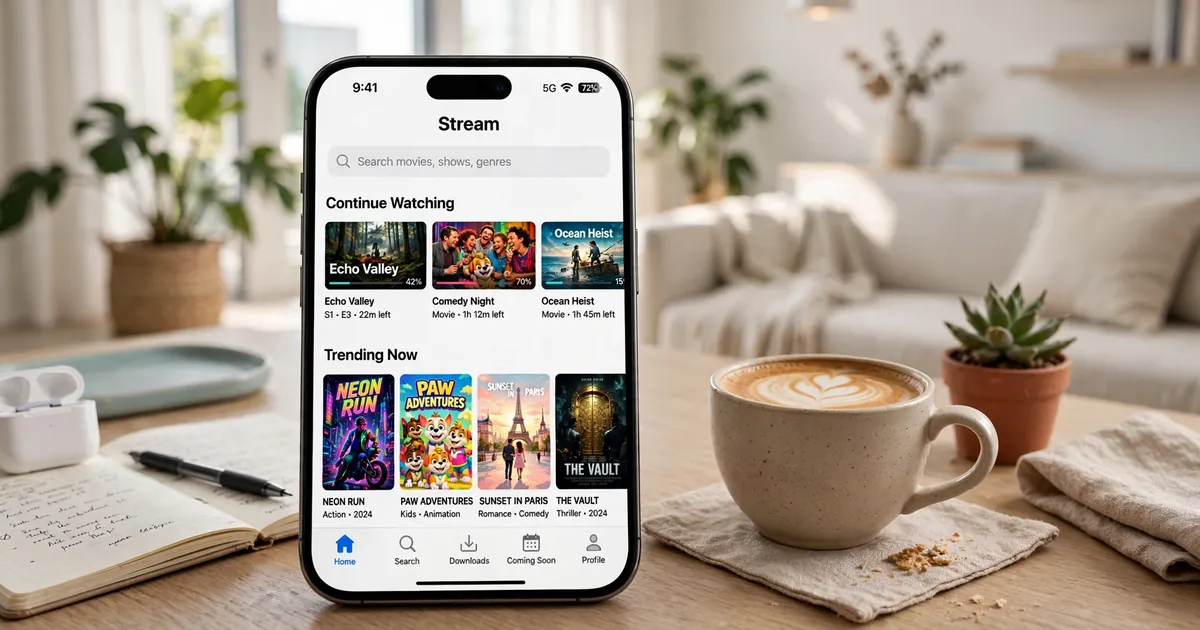
There is no HiStream app for iPhone, and there will not be one through the App Store. HiStream is distributed as an Android APK, and Apple does not allow sideloaded APKs on iOS, full stop. But the underlying service is a website, and websites do not care what phone you use. On an iPhone you simply use HiStream in Safari, and with two minutes of setup it feels close enough to an app that most people stop noticing the difference.
Key takeaways: No iOS app exists and none is coming via the App Store. Use the HiStream website in Safari and add it to your Home Screen for an app-like icon. Everything works: trending, search, audio toggle, continue watching. Latest Android app: HiStream APK download.
Method 1: Just use Safari (30 seconds)
- Open Safari on your iPhone and go to the HiStream website.
- Everything works immediately: trending shelf, title search, the Hindi/English audio toggle, and playback. iOS Safari handles the video player well.
- Bookmark the site so you are not retyping the address. Consider the app vs website comparison if you are curious how the two experiences differ.
Method 2: Add it to your Home Screen (2 minutes, recommended)
- With the HiStream website open in Safari, tap the Share button (the square with an arrow).
- Scroll down and tap Add to Home Screen.
- Name it HiStream and tap Add. You now have a HiStream icon on your home screen that opens the site fullscreen, without Safari's address bar, just like an app.
This is the setup we recommend. It launches fast, looks like an app, and updates itself, there is nothing to reinstall when the service changes. The one thing it cannot do is send you push notifications, which the Android app does not really do either.
What works and what does not on iOS
- Works: streaming, trending, search, audio language switching, continue watching (stored in Safari), and subtitles where the source provides them.
- Does not work: anything that needs an APK, offline downloads inside an app, and background playback with the screen locked (iOS Safari suspends it, like most web video).
- Picture in Picture: sometimes available via Safari's native controls, depending on iOS version. Tap the PiP icon in the player if you see one.
Beware of fake HiStream apps on the App Store
Search the App Store for "HiStream" and you may find apps with similar names and icons. None of them are the official HiStream. Clone apps charge subscriptions, inject ads, or harvest data. The official service has no iOS app, so anything claiming to be it is impersonating it. If you already installed one, delete it and use the website method above. Our safety review explains how to tell the real app from fakes on Android too.
iPhone plus TV
Want it on the big screen from your iPhone? Use AirPlay screen mirroring to an Apple TV, or open the site in a laptop browser and cast from there. The Chromecast guide covers the laptop casting method step by step, which works regardless of which phone you own.
Speed it up with a Shortcut
Once the Home Screen icon is in place, make launching instant with an iOS Shortcut: open the Shortcuts app, create a new shortcut with a single Open URL action pointing at the HiStream website, name it HiStream, and add that to your Home Screen too, or assign it to a Back Tap gesture (Settings, Accessibility, Touch, Back Tap). Double-tapping the back of your phone now opens HiStream. It is a small thing that makes the website feel as immediate as a native app.
iPad: the bigger canvas
On an iPad, the website experience is genuinely excellent, the larger screen suits the poster grids, and Safari on iPadOS handles the player flawlessly, including proper fullscreen. Add the Home Screen icon the same way and you have what is effectively a HiStream tablet app. If you also have an Android phone, remember the two do not share continue watching progress, Safari on the iPad and the app on the phone each keep their own. Pick one primary device per series to avoid losing your place.
Data and battery on iPhone
Streaming over cellular on iPhone follows the same math as Android: 720p uses roughly 0.7 GB per hour, 1080p two to three times that. iOS shows per-app data under Settings, Cellular, but since you are streaming in Safari, look at Safari's usage there. The full numbers live in our data usage guide. And like any video streaming, expect real battery drain: an hour of playback typically costs 15 to 25 percent depending on the model, so keep a charger handy for long sessions.
When to just borrow an Android
For one-off tasks the website cannot do, like testing the actual APK interface, borrowing a family member's Android for ten minutes is faster than fighting iOS limitations. Install from the HiStream APK download page, do what you need, and go back to the iPhone setup. Most iPhone users find the website covers 95 percent of their watching, and the remaining 5 percent is rarely worth a second device.