
HiStream Subtitles Not Showing? How to Fix Subtitles (CC Guide)
Subtitles on HiStream depend on two things: whether the source provides them, and whether the player has them switched on. When subtitles are missing, it is usually one of those two, not a broken app. This guide walks through turning them on, switching languages, and what to do when a title simply has no subtitle track.
Key takeaways: Tap the player, open the CC/subtitles menu, and pick your language. No subtitle option at all means that source has none, try a different server. Subtitle timing issues are source problems, not app problems. App: HiStream APK download.
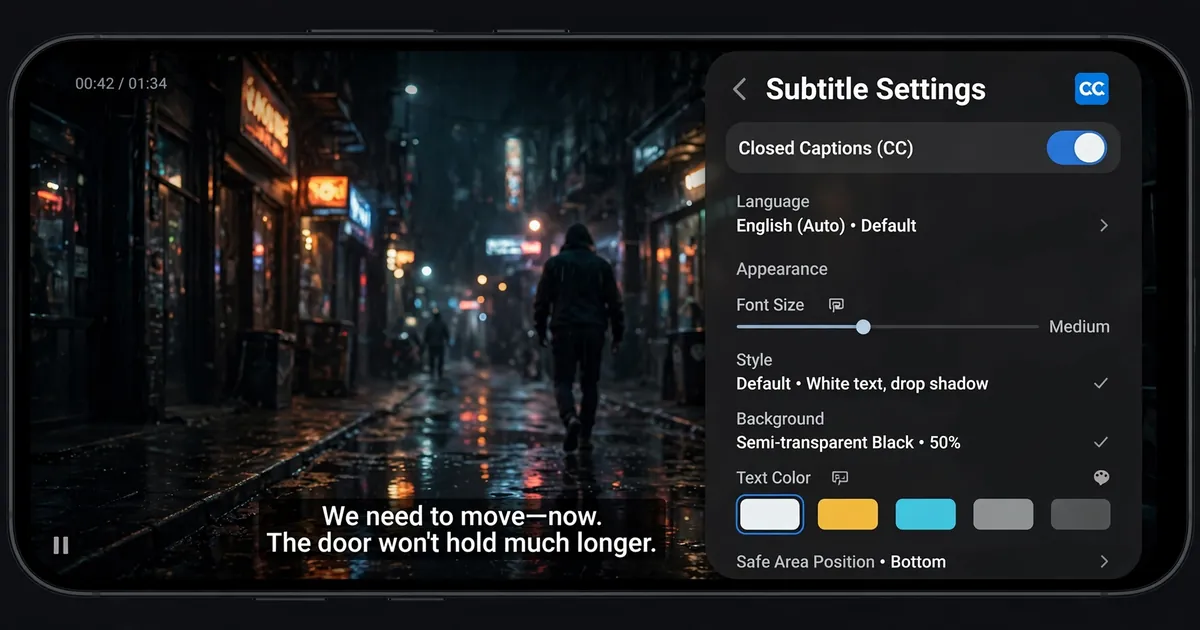
Step 1: Turn subtitles on in the player
- Start the movie or episode and tap the video once to reveal the player controls.
- Look for the CC icon or a speech-bubble icon in the controls bar. Tap it.
- A list of available subtitle languages appears. Pick yours, English, Hindi, or whatever is listed, and subtitles start immediately.
- If the CC icon is missing entirely, this source has no subtitle tracks. Skip to Step 3.
Step 2: Pick the right language
Some titles list several subtitle languages; others list one. The subtitle language is independent of the audio language, so you can watch with Hindi audio and English subtitles, or any other combination the source offers. If your language is listed but selecting it does nothing, the track itself is broken on that source, which brings us to the real fix:
Step 3: Switch to a different server
This fixes most subtitle problems. HiStream pulls each title from multiple sources, and subtitle availability varies wildly between them. One server has no subtitles, the next has three languages. Look for a server or source switcher near the player (usually labeled Server 1, Server 2, or similar), change it, and check the CC menu again. In our experience, at least one source per popular title carries English subtitles.
Common subtitle annoyances, explained
- Subtitles out of sync: the subtitle file was made for a different cut of the video. Nudge the subtitle delay if the player offers a sync slider; if not, switch servers, another source usually has a correctly timed track.
- Subtitles too small: check your phone accessibility settings, Settings, Accessibility, Caption preferences. Android lets you set caption size and style system-wide, and most players respect it.
- Subtitles show the wrong language: you picked a mislabeled track, common on aggregated sources. Try every option in the CC menu before giving up; labels are not always accurate.
- Subtitles work on one title but not another: normal. Subtitle availability is per title per source, not a global app feature.
When nothing works
If no server offers subtitles for the title you want, the honest answer is that they do not exist for that source right now. Popular new releases get subtitle tracks fastest; obscure or very old titles may never have them. In that case, watching with the audio in your preferred language is the practical fallback. Also make sure the app itself is current, an old version can have a player that mishandles subtitle tracks, see our old versions guide before downgrading or upgrading.
Why subtitles break: a 30-second explanation
Subtitles are separate text files timed to the video, not burned into the picture. HiStream's player loads the video stream and the subtitle track independently, then overlays them. That independence is why subtitles can be perfect while video buffers, or broken while video plays fine: the two travel separately and fail separately. When you switch servers, you are switching both the video and its subtitle bundle, which is why a new server often fixes subtitles while the old video played fine.
Using subtitles to learn a language
A surprising number of people use HiStream for language practice: Hindi dubbed movies with English subtitles, or English audio with Hindi subtitles. Two tips if that is you: first, prefer sources with properly synced tracks, badly timed subtitles teach bad habits. Second, if the player offers subtitle delay adjustment, learn where it is; a 500 ms nudge makes an unwatchable track usable. And when a title you are studying has no subtitles at all, the offline download methods let you grab the file and pair it with a subtitle file from a subtitle archive in VLC or MX Player, which have far better subtitle controls than any web player.
Subtitles on TV and Firestick
On a big screen the same rules apply, but the controls are harder to reach with a remote. Open the title, bring up the player menu, and find the CC option before you settle in, doing it mid-movie with a Firestick remote is fiddly. If you watch on TV regularly, our Smart TV guide and Firestick guide cover the setups where subtitles behave best.
Keep the app updated for subtitle fixes
Player improvements ship with app updates, and subtitle handling is one of the things that quietly gets better. If subtitles misbehave across every title and server, check that you are on the latest version before assuming the worst; the old versions guide explains when updating helps and when an older version was actually better. And when a brand-new release has no subtitles anywhere, patience is the fix: subtitle tracks for new titles typically appear within days as sources catch up.