
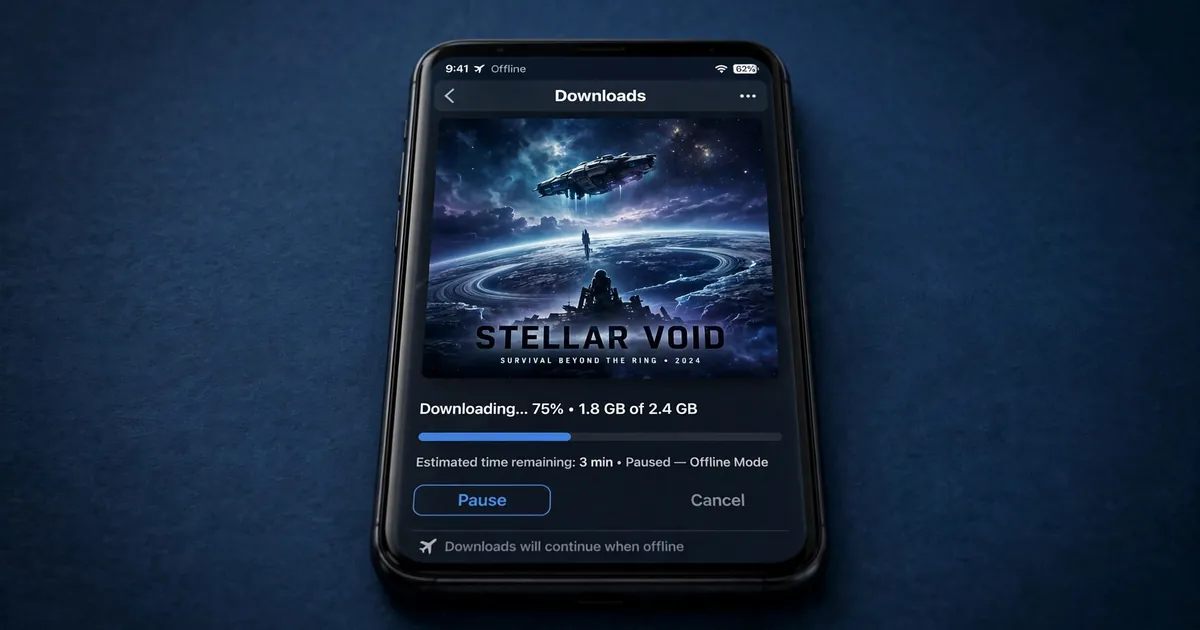
How to Download Movies for Offline Watching on HiStream
Straight answer first: the HiStream app has no download button. There is no built-in offline mode, no download arrow under the player, and no "saved movies" folder anywhere in the app. HiStream is a tiny streaming wrapper, it plays video from web sources and keeps nothing on your phone. If you are on a flight, a metro with dead zones, or a data plan you guard jealously, that is annoying. But there are still four realistic ways to watch offline, ranked from easiest to most effort.
Key takeaways: No built-in download button exists in the HiStream app. Check the player page for a source-provided download link first, then use a downloader app, screen recording as a last resort, or simply lower the quality to save data instead. Grab the latest version from the HiStream APK download before trying anything below.
Why there is no download button
The app is about 45 KB. That is not a typo, and it tells you everything about its architecture: it is a lightweight shell around the HiStream web player, not a full media platform with its own servers and a download manager. Adding offline downloads would mean storage management, download queues, and rights handling, none of which fit in an app this small. The safety review covers how the app is built if you are curious. The practical consequence is simple: if you want a file on your phone, you have to get it outside the app.
Method 1: Look for a download link on the player page
Before reaching for extra tools, check the actual player. Some of the video sources HiStream pulls from include their own Download link below or beside the player, usually in a small menu or under the video title. Not every title has one, and availability changes as sources rotate, but when it is there it is by far the cleanest option: one tap, the file lands in your Downloads folder, and it plays in any video player. If you mostly watch on a bigger screen anyway, our Smart TV setup guide shows how to get the same library on a television.
Method 2: Use a video downloader app
When the player page offers no link, a general-purpose video downloader can grab the stream. The workflow is always the same: copy the page URL, paste it into the downloader, pick a quality, and wait. A few honest warnings from testing:
- Stick to well-known downloaders with real Play Store listings and update histories. Random "HD Video Downloader Pro" APKs from forums are the number one way people install adware while trying to save a movie.
- Pick 720p, not 1080p. A two-hour movie at 720p is roughly 1 to 1.5 GB; at 1080p it can be 3 GB or more. Your phone storage will thank you, and on a phone screen the difference is smaller than you think.
- Download on Wi-Fi only. A single movie can eat a week of a small data plan. Our data usage guide breaks down exactly how much streaming costs per hour at each quality.
Method 3: Record the screen (last resort)
Every modern Android phone has a built-in screen recorder (swipe down twice, look for Screen record). Start the movie, start recording, and let it play. The downsides are real: it records in real time, so a two-hour movie takes two hours; notifications and calls can interrupt it; and the file is large because it captures at your screen resolution. Use it only for short clips or episodes you cannot get any other way. If recordings stutter, the buffering fix guide usually solves the underlying playback problem first.
What does not work
- Browser save page: saving the HiStream website for offline use saves the page shell, not the video. The video loads from a separate stream each time.
- Clearing cache tricks: some guides claim cached video chunks can be stitched into a file. In practice the cache is fragmented, encrypted, or wiped, and you will waste an afternoon.
- Fake HiStream Pro APKs: any APK promising "offline downloads unlocked" is not the real app. The real app is 45 KB, free, and has no Pro version.
A word on storage
Downloaded movies add up fast. Before a trip, check Settings, Storage on your phone and keep at least 3 to 4 GB free per movie you plan to carry. Move finished movies to a computer or delete them, and never download to a phone that is already warning you about full storage, Android starts killing background apps and misbehaving when storage runs out.
If offline viewing is a regular need rather than a one-off trip, it is worth asking whether the app or the website fits your habit better, the website in a desktop browser pairs well with desktop download managers that handle queues and retries far better than any phone tool.
Method 4: Download on desktop, transfer to phone
If the phone tools feel fiddly, do the downloading on a computer. Desktop browsers have mature download managers with queues, retries, and scheduling, and the PC setup turns any laptop into a HiStream station. Download the file on the laptop over fast Wi-Fi, then transfer it to the phone with a USB cable or a local Wi-Fi transfer app. This is the most reliable method for grabbing several episodes before a trip, because a laptop does not sleep mid-download, overheat, or get interrupted by calls.
The pre-trip checklist
Downloaded the night before a flight, in this order:
- Update the app first. An old player can mishandle newer sources. Check the old versions guide if you are unsure which version you run.
- Pick quality before downloading. Decide per title: 720p for the phone, 1080p only if you will watch on a laptop. See the quality settings guide for the data math.
- Test-play the first minute of each file. A download that "completed" with an error is worse than no download, because you discover it at 35,000 feet. Open each file briefly and confirm video and audio.
- Charge everything and pack a cable. Offline video still drains battery like streaming does. A power bank is part of the offline kit.