
Best Streaming Quality Settings on HiStream: 480p vs 720p vs 1080p
Most people never touch the quality setting, and then wonder why movies buffer on mobile data or look soft on a TV. HiStream lets you pick the playback quality per title, and the right choice depends on three things: your screen size, your connection speed, and how much data you are willing to spend. Here is how each option actually behaves, and the settings we recommend for every common situation.
Key takeaways: 720p is the sweet spot for phones: sharp enough, half the data of 1080p. Use 480p on slow connections or tight data plans, 1080p only on Wi-Fi with a big screen. Set it per title, it does not always stick globally. Latest app: HiStream APK download.
Where the quality setting lives
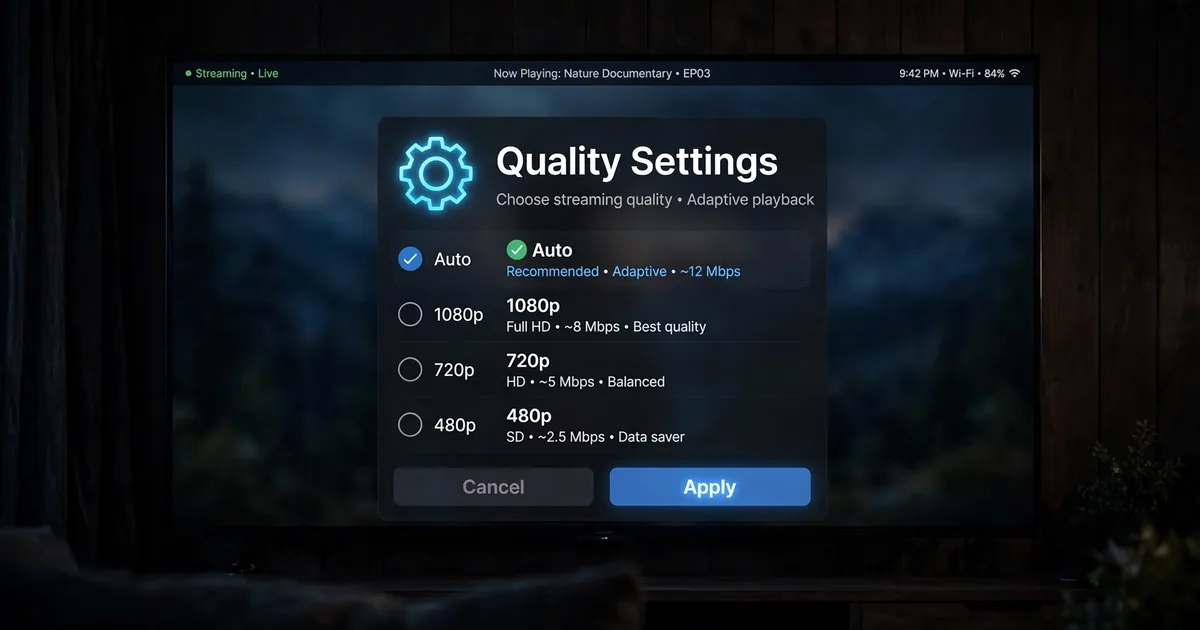
Open any movie or episode and start playback. Tap the player once to show the controls, then look for the gear icon or a label like 720p in a corner of the player. Tapping it opens the quality list, typically Auto, 1080p, 720p, 480p, sometimes with a 360p option on slower sources. Pick one and playback restarts at the new quality within a few seconds. Note that the choice is per title and per source; switching to a different server or episode can reset it, so check it when something looks off.
What each quality actually means
- 480p: the data saver. A two-hour movie uses roughly 700 MB. Faces are recognizable, text is readable, but fine detail is gone. Perfect for small phones, background watching, and weak connections.
- 720p: the sweet spot. About 1 to 1.5 GB per two-hour movie. Looks genuinely good on any phone and acceptable on smaller TVs. This is what we recommend for 90 percent of watching.
- 1080p: full HD. Roughly 2.5 to 4 GB per two-hour movie. Worth it on a TV or monitor over Wi-Fi; wasted on a phone screen and brutal on mobile data.
- Auto: the player guesses based on your current speed. Convenient, but it guesses wrong in both directions: it drops to blurry 480p on fluctuating connections and burns data on fast ones. We prefer setting it manually.
Our recommended settings by situation
- Phone on mobile data: 480p or 720p. If your plan is small, 480p stretches it enormously. Full numbers are in the data usage guide.
- Phone on Wi-Fi: 720p. Sharp, fast to start, no buffering in most homes.
- TV or Firestick: 1080p on good Wi-Fi, 720p otherwise. Big screens show every soft pixel, so feed them when the connection allows. See the Smart TV guide and Firestick guide for big-screen setup.
- Weak or fluctuating connection: 480p, always. A stable 480p beats a stuttering 720p every time. Dropping quality is also fix number one in our buffering fix guide.
Quality vs. audio language
One thing that confuses people: changing quality does not change the audio. The Hindi/English audio toggle is a separate control in the player, so you can watch a 480p stream with Hindi audio or a 1080p stream in English. They are independent settings, set each to what you want.
Why 1080p sometimes looks like 720p
If you select 1080p and the picture still looks soft, the source itself is the limit. HiStream plays what its sources provide; a 1080p label on an upscaled 720p source will not magically add detail. Try switching to a different server for the same title, quality varies noticeably between sources. And if the picture looks great but keeps pausing, that is not a quality problem, that is a connection problem, treat it as one.
Data math: what a month of watching costs
Quality settings are really budget settings. Here is what an hour of watching costs at each level, roughly:
- 480p: about 0.35 GB per hour. A 5 GB monthly plan survives roughly 14 hours of watching.
- 720p: about 0.7 GB per hour. That same 5 GB plan gives you about 7 hours.
- 1080p: about 1.5 to 2 GB per hour. 5 GB disappears in under 3 hours.
If you watch an episode a night (about an hour), 480p costs you roughly 10 GB a month and 720p about 21 GB. This is why the default advice is 720p on Wi-Fi and 480p on data: the visual difference on a phone is modest, but the data difference is double. Our full data usage guide has the complete breakdown with real test numbers.
Auto quality: when to leave it on
We said we prefer manual, but Auto earns its keep in two situations. First, on trains, buses, or anywhere the signal fluctuates, Auto drops to 480p through tunnels and climbs back when the signal returns, without you babysitting the gear icon. Second, when someone else is watching, a parent or grandparent who will never open settings, Auto guarantees the video keeps playing instead of freezing on a too-ambitious 1080p. The cost is occasional softness and surprise data use on fast connections. If neither situation applies to you, manual 720p remains the best default.
When quality settings do not help
Changing quality cannot fix a bad source. If every quality looks blocky, the source itself is low quality, try another server. If the video freezes at every quality including 480p, the problem is your connection or the server load, work through the buffering fixes instead of cycling quality options. And if audio is the problem, stuttering sound or wrong language, quality settings are irrelevant; check the audio guide and the subtitles guide instead.